

Authors

Enter Unstructured. Specializing in extracting and transforming complex enterprise data from various formats, including the tricky PDF, Unstructured streamlines the data preprocessing task. This is not just about making the data extraction process less tedious. It’s about unlocking the potential of vast amounts of information hidden in PDFs and other formats, transforming them into AI-friendly JSON files ready for vector databases and large language model (LLM) frameworks. By reducing the preprocessing workload, Unstructured enables data scientists to channel their focus where it matters most: modeling and analyzing the data to drive actionable insights.
This guide aims to do just that. We’ll walk through the process of processing PDFs in Python, step by step, offering you the tools to wrestle that stubborn data into a structured, usable format. And while we delve into the ‘how’, we’ll also explore the ‘why’ — why opting for Unstructured is a prudent choice for data scientists striving for efficiency, accuracy, and ease in managing their data assets. So, if you’re tired of PDF-induced headaches and ready to take charge, read on. Let’s demystify the world of PDF data extraction together.
Setting Up Your Environment
Before diving into the world of PDF data extraction, ensuring that your environment is primed is crucial. PDFs, being a complex format, often require specific libraries to handle their intricacies. Let’s set up our Python environment to ensure smooth sailing:
Python Version with pyenv: If you don’t have pyenv installed, it’s a great tool to manage multiple Python versions. Install it following the instructions here. Once done, install your desired Python version:
pyenv install 3.9.1Setting Local Python Version: Set the installed version as the local version for your project directory:
pyenv local 3.9.1Virtual Environment with pyenv-virtualenv: pyenv works seamlessly with pyenv-virtualenv. If you don’t have it yet, check the installation guide here. Create a new virtual environment:
pyenv virtualenv 3.9.1 pdf_envThen activate the environment:
pyenv activate pdf_envInstallation of Unstructured:
pip install unstructuredTo install the full system dependencies follow this link.
Exploring Customizability with Unstructured
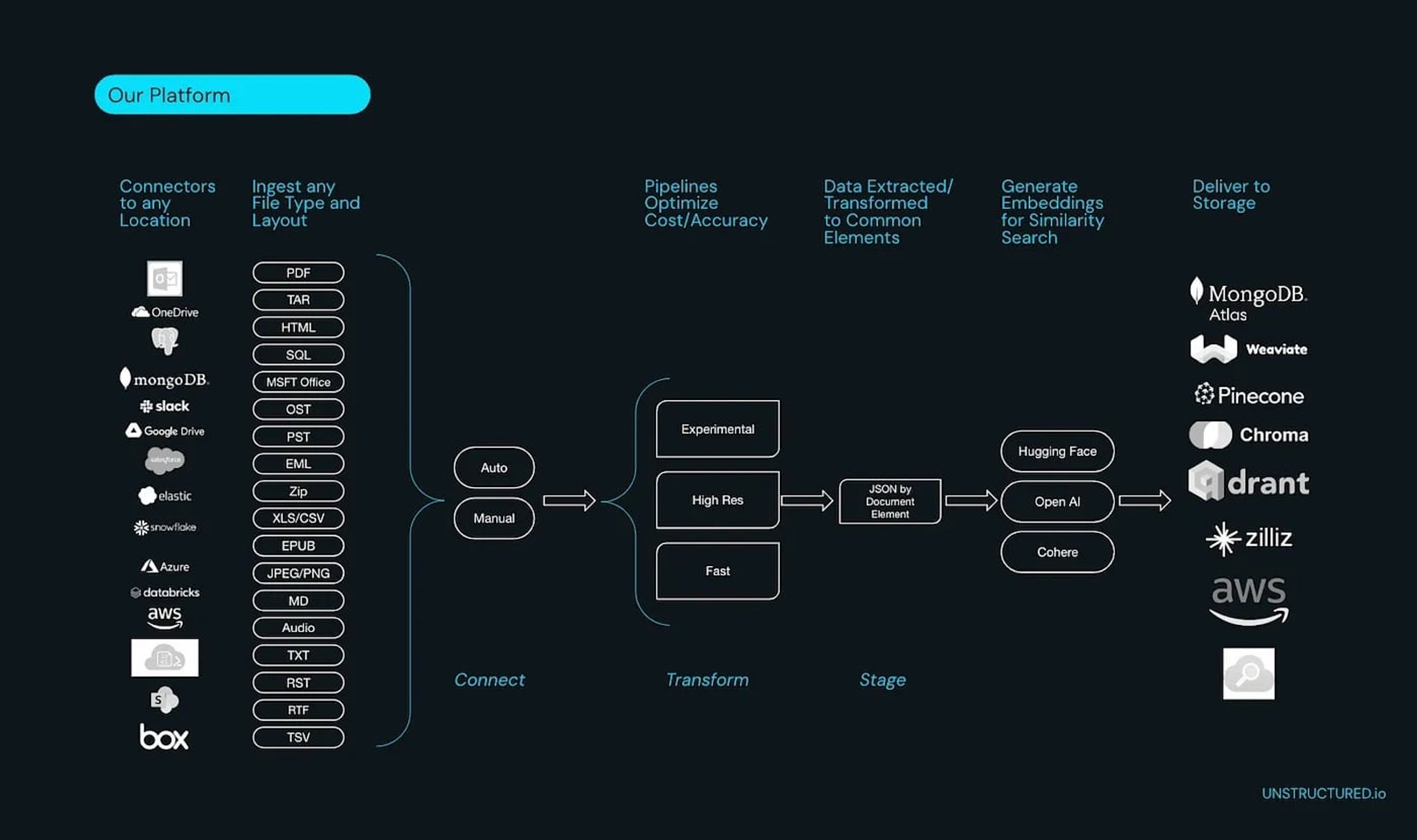
Before we jump into the code, it’s worth mentioning the breadth of options Unstructured.io provides. Not only can it process a myriad of document formats like HTML, CSV, PNG, and PPTX, but it also offers 24 source connectors and counting to effortlessly pull in your data, eliminating the need for you to spend time building data pipelines. This is a testament to Unstructured’s commitment to streamlining data preprocessing tasks for data scientists.
Unlocking Text from PDFs
Unstructured makes it very easy to partition PDFs and extract the key elements. With one line our python package can return a list of elements that are found within the document. Each element has a classification and the associated metadata with it.
from unstructured.partition.pdf import partition_pdf

# Returns a List[Element] present in the pages of the parsed pdf document
elements = partition_pdf("example-docs/layout-parser-paper-fast.pdf")
There are many more customizations you can make. You can optimize for speed, security, and quality. For a full breakdown of our partition function you can explore it here.
Extracting Tables from PDFs
Now let’s say that your PDF has tables and let’s say you want to preserve the structure of the tables. You will have to specify the strategy parameter as “hi_res”. This will use a combination of computer vision and Optical Character Recognition (OCR) to extract the tables and maintain the structure. It will return both the text and the html of the table. This is super useful for rendering the tables or passing to a LLM.
# This will process without issue
elements = partition_pdf("example-docs/copy-protected.pdf", strategy="hi_res")
Note: For even better table extraction Unstructured offers an API that improves upon the existing open source models (big improvements coming Oct 18th). Sign up here to get your API key. Additionally we are also building our own custom image-to-text model, Chipper, that in some cases outperforms computer vision + OCR.
Wrapping Up and Taking PDF Data Further
And there you have it — a concise guide to extracting text and tables from PDFs using Python. The world of PDF data extraction can be daunting given the intricacies of the format. But with the right tools and practices in place, it becomes a more manageable task.
But don’t stop here. The data extracted is only as good as its application. Think about how this data can be integrated into larger datasets, how it can feed into your machine learning models, or even how it can be visualized for insights. The versatility of Python means the possibilities are nearly endless.
Encountered challenges following this tutorial or have questions? I encourage you to join our community Slack group. There, you can connect with fellow users, exchange insights, and stay updated on the latest developments. We’re excited to see the innovations you come up with!
FAQ
Why is extracting data from PDFs more difficult than from other file formats?
PDFs are designed for visual presentation, not data portability. Unlike CSV or JSON files, PDFs encode content as a mix of text layers, images, and layout instructions, which means the logical structure of a document (headings, tables, paragraphs) is rarely preserved in a way that's easy to parse programmatically. Tables are especially problematic, since their cell boundaries are often implied by position rather than explicit markup.
What Python libraries are commonly used to extract text from PDFs?
Popular options include PyPDF2, pdfplumber, and pdfminer.six, each with different trade-offs in terms of accuracy, speed, and support for complex layouts. For straightforward text extraction from well-formatted PDFs, these libraries work reasonably well. However, they tend to struggle with scanned documents, multi-column layouts, and embedded tables, which often require OCR-based approaches.
When should you use OCR to process a PDF instead of direct text extraction?
OCR is necessary when a PDF is image-based, meaning the document was scanned or saved in a way that embeds content as images rather than selectable text. In these cases, standard text extraction libraries return empty or garbled output. OCR tools analyze the visual content of each page to recognize and reconstruct the text, though accuracy can vary depending on scan quality and document complexity.
How does Unstructured handle table extraction from PDFs, and what formats does it return?
When you set the strategy parameter to "hi_res" in Unstructured's partition function, it applies a combination of computer vision and OCR to detect and extract tables while preserving their structure. The output includes both the plain text content and an HTML representation of the table, making it straightforward to render the table visually or pass it directly to a large language model. This is particularly useful for financial reports, research papers, and other documents where tabular data carries critical meaning.
What document formats and data sources does Unstructured support beyond PDFs?
Unstructured processes a wide range of document types including HTML, CSV, PNG, PPTX, and more, making it practical for enterprise pipelines that deal with mixed-format data. It also provides over 24 source connectors, allowing teams to pull data directly from cloud storage, databases, and other systems without building custom ingestion pipelines. This breadth of support means Unstructured can serve as a single preprocessing layer across an organization's entire document ecosystem.